Turn an LLDP or CDP neighbour table into a network map
· 2 min read
Your switches already know what is plugged into them. Export the LLDP or CDP neighbour table as a CSV and turn it into a cabled network map in one import.
Every managed switch keeps a list of what is directly connected to it: LLDP on most vendors, CDP on Cisco, often both. That list is the most accurate cabling record you will ever have, because the switch builds it from the wire. This guide turns it into a map.
Step 1: get the neighbour tables
On each switch, the commands are some version of:
show lldp neighbors detail
show cdp neighbors detail
You need them as a table. Most teams already have one of these:
- A network monitoring system. LibreNMS and NetDisco both hold the neighbour links for every switch and can export them.
- A script. Netmiko with the ntc-templates parsers turns
show cdp neighbors detailinto rows in a few lines of Python. - A spreadsheet. For three switches, copying the output into a sheet by hand takes ten minutes.
Step 2: shape the CSV
One row per neighbour, with at least these four columns:
Local device,Local port,Neighbor,Neighbor port,Neighbor IP,Platform,Capabilities
sw-core-01,Gi1/0/1,fw-edge-01,port2,10.99.0.1,FortiGate-100F,Router
sw-core-01,Gi1/0/24,sw-floor2,Gi1/0/48,10.99.0.3,C9200L-48P,Switch
sw-floor2,Gi1/0/48,sw-core-01,Gi1/0/24,10.99.0.2,C9300-24T,Switch
sw-core-01,Te1/1/1,srv-hv-01,vmnic0,,VMware ESXi,Station
The importer is relaxed about headings. "Neighbour", "Neighbor", "Remote device" and "Device ID" all work for the far end; "Local interface" and "Port" work for the near one. The IP, platform and capabilities columns are optional but help: capabilities and platform set each device's type.
Notice that the link between sw-core-01 and sw-floor2 appears twice, once from each switch. That is normal, and the importer keeps one cable.
Step 3: import it
Drop the CSV (or an Excel file) on the ApexDiagram dashboard. You get:
- Every named device, typed from its capabilities (router, switch, access point) or, failing that, from its platform and name.
- Every row as a cable between the two named ports, de-duplicated in both directions.
- Fibre where it looks like fibre. Ports named Te, Xe, SFP or 10G get an LC connector and fibre cable type, which you can correct.
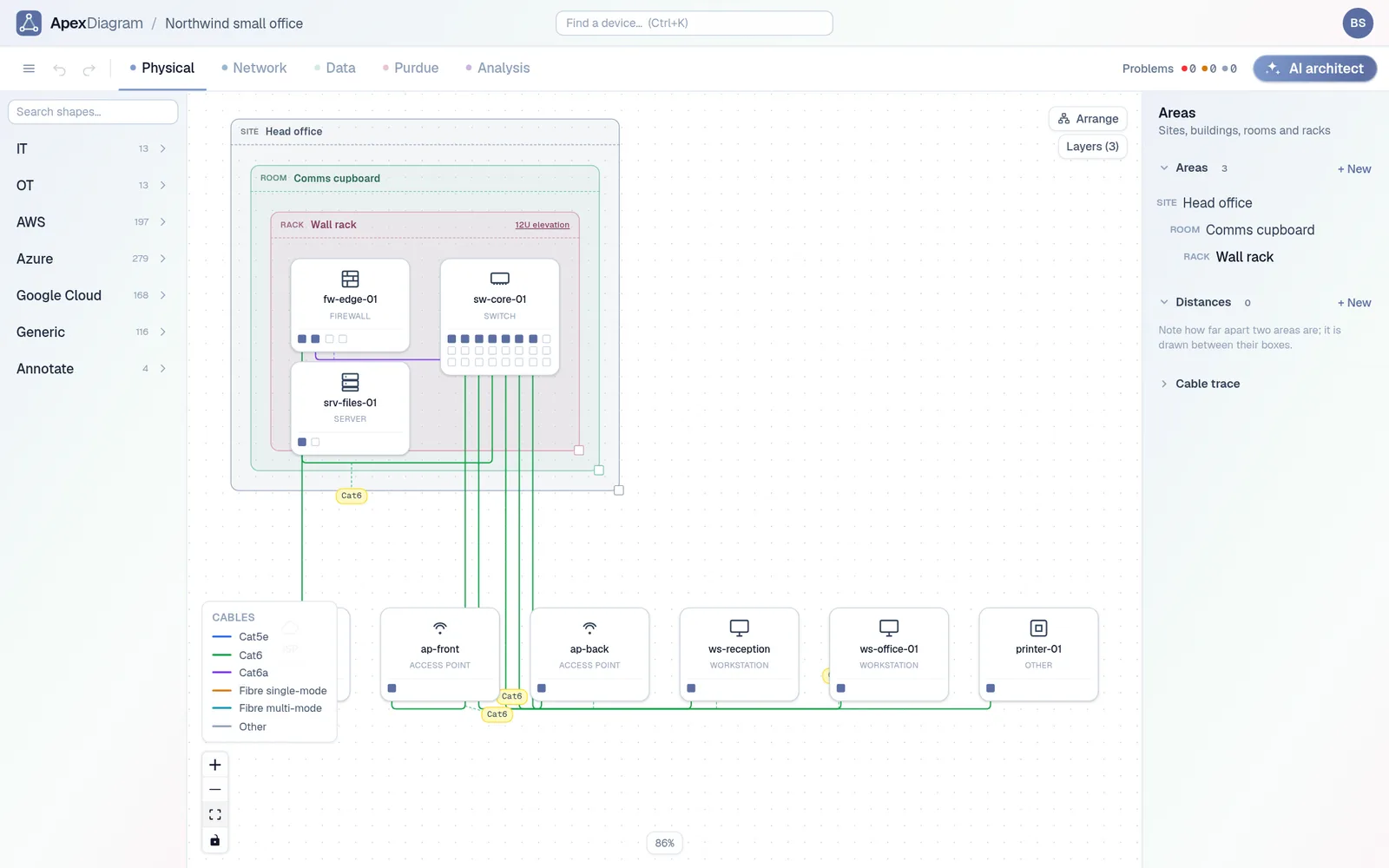
Press Arrange in the Physical view, then put each switch in its rack. The diagram assistant will point out what is missing: devices without an IP, infrastructure without a make or model.
Each cable keeps both port names, so a trace shows the real interfaces
Combine it with other sources
LLDP is excellent at switch-to-switch and switch-to-server links. It misses anything that does not speak LLDP: most printers, many IoT devices, and anything behind an unmanaged switch. Pair it with:
- An nmap scan for the hosts and their addresses. See How to turn an nmap scan into a network diagram.
- Your controller's export if you run UniFi or Meraki, which knows the switch port of every client.
- A device list from a spreadsheet for everything else.
Keep it current
Export the neighbour table again after any recabling and use Refresh from file. The diff shows cables that appeared and disappeared before you apply anything, which doubles as a check that the change went the way the ticket said.
Document your network once, keep it current
One network graph, four synchronized views, a linter and a bill of materials. Import the Visio or draw.io file you already have.
Join the beta